Reading Time: 4 Minutes; Writer: Rafshan Tashin
For visualization studios and Unreal Engine developers, the delivery mechanism is just as critical as the rendering quality itself. You spend hundreds of hours optimizing lumens, baking lighting, and refining interactions in UE5 to create a perfect digital twin or configurator. However, that immersion is fragile. If a client clicks a link and is greeted by a generic third-party interface, a default "connecting" spinner, or an exposed URL, the professional illusion is broken before the application even loads.
White labeling is not merely a cosmetic upgrade; it is a fundamental component of enterprise-grade Pixel Streaming. It transforms a cloud-hosted session into a cohesive, proprietary software experience. Whether you are navigating browser security policies regarding audio autoplay or simply ensuring brand consistency during a high-stakes pitch, controlling the "unboxing" experience of your stream is essential for maintaining client trust and user engagement.
For visualization studios and Unreal Engine developers, the delivery mechanism is just as critical as the rendering quality. You spend hundreds of hours optimizing lumens, baking lighting, and refining interactions in UE5. However, if your client clicks a link and sees a generic third-party interface, a default "connecting" spinner, or an exposed URL, the immersion is broken before the application even loads.
White labeling isn’t just about aesthetics; it is about brand ownership and technical functionality.
When delivering a high-fidelity Pixel Streaming application via Eagle 3D Streaming (E3DS), you need the interface to feel like a proprietary tool built by your studio. Furthermore, modern browser security policies (specifically regarding audio autoplay) often require user interaction to enable sound. A customized "Click to Play" overlay isn't just a branding choice—it’s a necessary UX pattern to ensure your application’s audio triggers correctly.
Eagle 3D allows for two distinct levels of customization, depending on whether you need a quick interface swap or a full web integration.
This is the fastest route to removing third-party branding. Directly from the E3DS dashboard, you can replace the default UI elements with your own assets. This changes the visual wrapper of the player without requiring you to host the stream on your own web server.
This is for studios that require the stream to exist strictly within their own digital ecosystem. By generating an iFrame or using our SDKs for React and HTML, you can embed the stream directly into your existing website. This masks the streaming URL entirely, making the experience indistinguishable from a native web app.
Browser policies (especially Chrome and Safari) block audio from playing automatically if the user hasn't interacted with the DOM.
The Issue: A user loads your stream, the app starts, but the background music or ambient sound is muted.
The Fix: By using a Custom Play Button via White Labeling, you force a user interaction (the click) to start the stream. This satisfies the browser's requirement, ensuring your audio plays instantly upon launch.
When pitching a luxury property or a digital twin to a stakeholder, the URL matters. Sending a client to eagle3dstreaming.com/play/xyz feels like a temporary demo. Embedding the stream on presentations.yourstudio.com with a custom loading background of the specific project renders establishes professional trust and data security perception.
For automotive or product configurators, the transition from "loading" to "interactive" must be seamless. A custom loading screen allows you to display control instructions (e.g., "Rotate with Left Click, Pan with Right Click") while the instance spins up, educating the user before they even enter the 3D space.
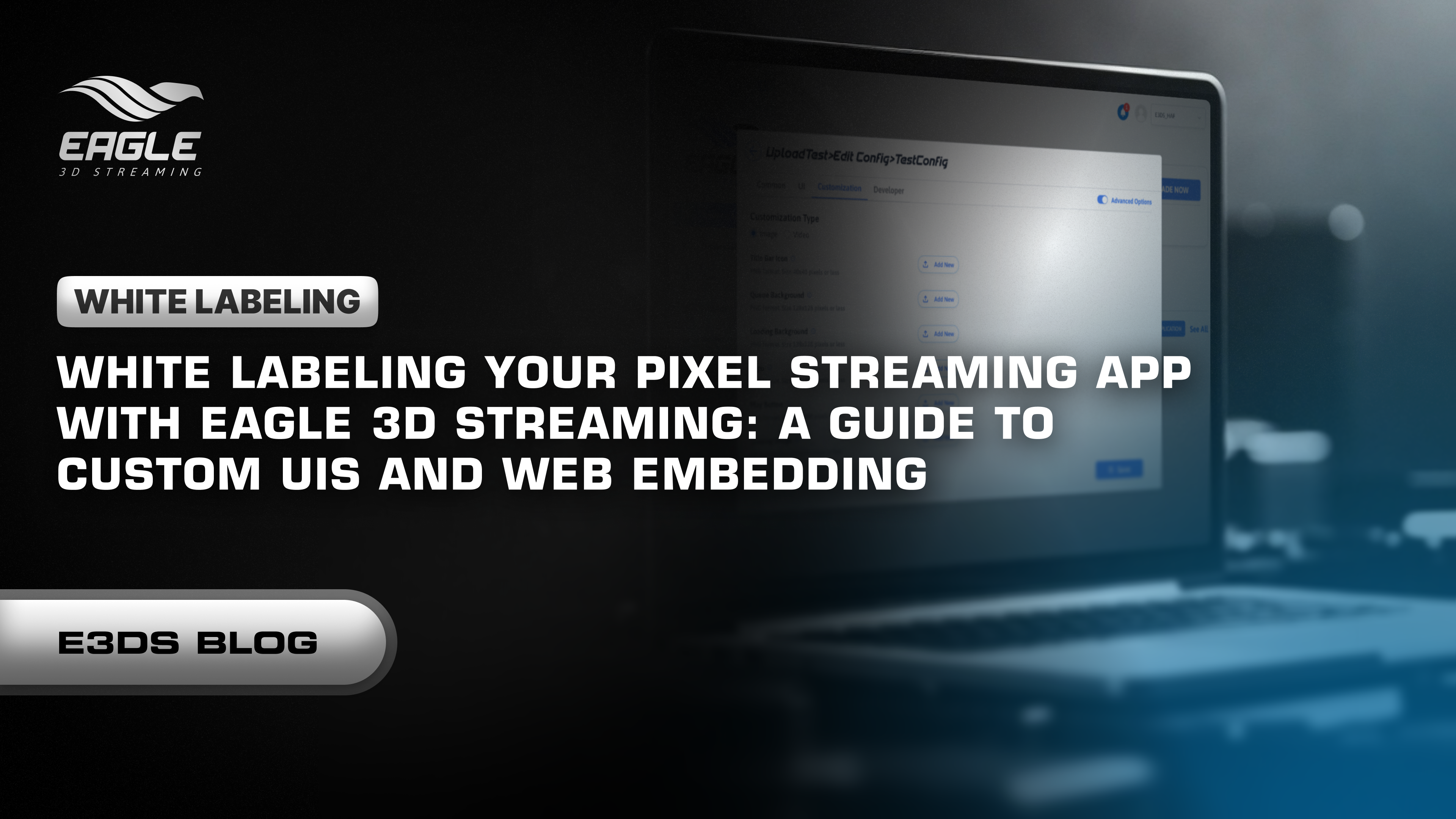
If you aren't ready to embed the stream into your own website yet, you can still fully brand the player experience using the Eagle 3D Control Panel.
Log in to your Eagle 3D account. Navigate to the Control Panel and select the specific app you wish to customize.
Create a new Config or edit an existing one. Ensure you toggle "Enable Advanced Options" to reveal the customization settings.
Click on the Customization tab. Here you will see slots for various UI elements. You can replace:
Loading Background: The static image shown while the server allocates a GPU.
Logo: Your studio or client’s logo overlay.
Play Button: The interactive element that starts the stream.
Title Bar Icon: The favicon or window icon.
Click Add New for the specific element, upload your .png or .jpg assets, and click Save.
Click Play Application. Your stream will now launch with your custom assets, effectively masking the Eagle 3D branding and replacing it with your own.
For developers looking to implement Level 2 (Embedding) using HTML, ReactJS, or WordPress, or for specific asset resolution requirements, please refer to the technical documentation.
White labeling is a standard requirement for enterprise-grade Pixel Streaming. By customizing the loading sequence and embedding the player, you transform a cloud-hosted stream into a polished, standalone software product. Whether you are solving audio context issues or simply protecting your brand identity, these tools give you full control over the user journey.
What should I do now?
If you are looking to leverage immersive technology for your business, here are three ways to move forward with Eagle 3D Streaming: https://docs.eagle3dstreaming.com/wiki/customize-ui-elements-and-embed-the-app-with-user-
If you want to understand the technology better, connect with other developers, or contact us directly, join our Discord server: Join the Eagle 3D Community
If you know about Pixel Streaming but want to understand how to optimize your project for the web, try our free guide: Get the Free Pixel Streaming Guide
If you have a project ready and want to stream it to the world immediately, upload your project by signing up here: Sign Up & Upload Project
Share the post
Blogs


The Ultimate Bridge: Why UE Devs and Visualization Agencies Need the Eagle 3D Features Plugin
Unlock the full potential of Unreal Engine Pixel Streaming with the Eagle 3D Features Plugin. Simplify browser-to-engine communication with ready-to-use Blueprint nodes f...
A Better Way to Access Unreal Editor Remotely: Ending the Pixel Streaming Complexity
Discover how the E3DS Remote Control Plugin simplifies remote Unreal Editor access for debugging, training, and team collaboration without complex setup....
Case Study: Bridging Real-World Design and Real-Time 3D With R3PLICA
Discover how R3PLICA uses Unreal Engine and Eagle 3D Streaming to deliver real-time 3D experiences and manufacturer-accurate design assets to creators worldwide....
Case Study: Democratizing High-Fidelity 3D Visualization With Spine3D
Discover how Spine3D uses Unreal Engine and Eagle 3D Streaming to deliver high-fidelity 3D visualization and VR experiences instantly through any web browser....