Adding Convai voice AI to a pixel-streamed Unreal app on Eagle 3D Streaming
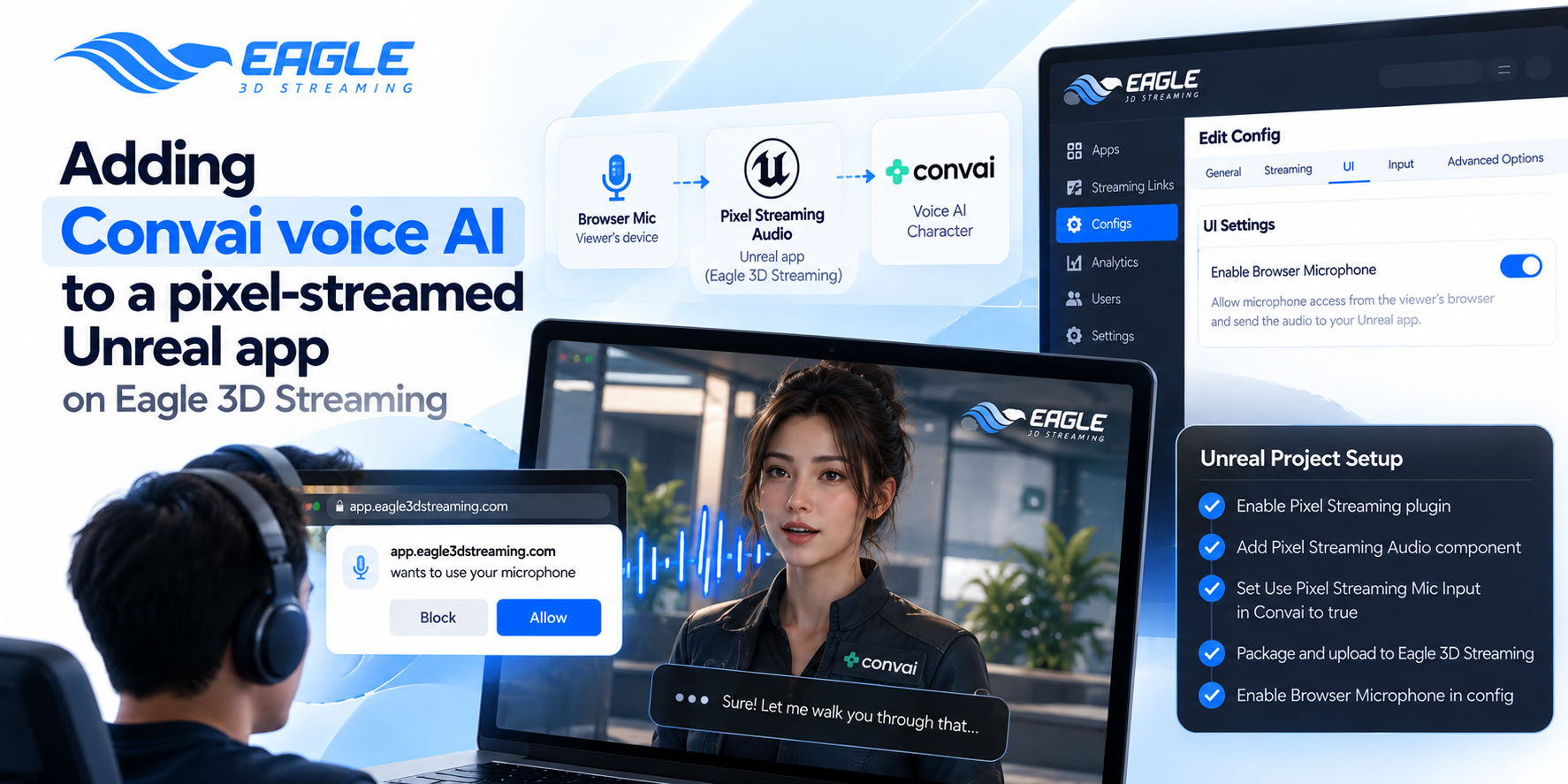
Make your Convai character hear viewers in a pixel stream. Set up browser mic input, Pixel Streaming Audio and Convai on Eagle 3D Streaming.
 Eagle 3d Streaming
September 24, 2026
7 min read
Convai characters work well in the editor. You speak, the character hears you, and it answers. Then you pixel stream the build, and the character goes deaf.
The reason is simple. In a pixel stream, your voice lives in the viewer's browser, not on the cloud machine running Unreal. This guide shows how to route that audio into your app. Then Convai can hear it on Eagle 3D Streaming.
Why the system mic stops working on Eagle 3D Streaming
A packaged Unreal app normally listens to the microphone on its own machine. On Eagle 3D Streaming, that machine is a GPU server with no one talking into it. The viewer's mic is on their own laptop or phone, somewhere else entirely.
So the audio has to travel the same way the video does, over the WebRTC connection. Pixel Streaming can carry mic audio from the browser back to the app. The browser captures the audio and Unreal receives it. Convai then has to be told to listen to that stream.
Step 1: enable the Pixel Streaming plugin
Start in the Unreal Editor. The Pixel Streaming plugin has to be enabled before anything else in this guide works. You'll need it enabled for Eagle 3D Streaming anyway, so it may already be on.
Also check that the Convai plugin matches your engine. The Convai Unreal plugin supports Unreal Engine 5 and 4.26 or higher. Eagle 3D Streaming supports UE 5.0 through 5.6, so a UE5 project covers both.
Step 2: add Pixel Streaming Audio to your project
Unreal needs a component to receive the browser's audio. Add Pixel Streaming Audio to an actor in your level. This component is what transfers the audio input from the browser side into the Pixel Streaming application.
You don't have to switch it on by hand. It activates by default as soon as the actor is added to the game. Eagle 3D Streaming's guide on consuming microphone data inside the Unreal app has the Blueprint screenshots.
Step 3: point Convai at the Pixel Streaming mic
By default, Convai listens to the system microphone. You have to tell it to use the stream instead. Convai's setting for this is Use Pixel Streaming Mic Input.
Set it to true and Convai listens to the Pixel Streaming mic. There's a trade-off here. Once it's on, the system microphone no longer works. To test voice in the editor, flip it back to false.
Step 4: turn on Enable Browser Microphone in Eagle 3D Streaming
Package the build and upload it to the Eagle 3D Streaming Control Panel. Then open your streaming link's config, go to Advanced Options, and open the UI tab. Toggle on Enable Browser Microphone and save.
This option lets your app receive mic data captured directly from the viewer's browser. It's off by default, so microphone access only happens with the viewer's consent. Miss this step and the character won't hear anything, however well the rest is set up.
Step 5: test it with a real voice
Open the streaming link in Chrome or Edge. The browser should ask for microphone permission, so allow it. Say something to your character and wait for a reply.
Before touching Convai, you can test the mic path alone. Eagle 3D Streaming has a microphone demo project that plays received mic audio back inside the game. You'll hear yourself as an echo, which proves the audio is reaching Unreal.
The browser never asks for mic permission
It's a known issue. One user on Convai's forum had the plugin and Blueprint set up on Eagle 3D Streaming. Still, the browser never asked for mic permission. Without that prompt, no audio leaves the browser.
Check the config first, because Enable Browser Microphone is the usual gap. Then check the site-level permission in the browser's address bar. A mic that was blocked once for that domain stays blocked until the viewer resets it.
The character hears you but you can't hear it
Audio going the other way has its own catch. Modern browsers block autoplaying audio, so video starts on its own while sound stays muted. It unmutes after the viewer clicks Play or interacts with the page.
So a silent first reply usually isn't a bug. Make sure viewers click something before the character speaks. The performance optimization guide covers this and other audio and mic fixes in more detail.
Don't need a mic? Turn it off
Some projects ship with voice features that aren't finished yet. Leaving the mic on in that case can cause a startup failure. Disable the microphone option in the app's configuration until voice is actually in use.
A missing mic setting isn't the only thing that breaks a stream at launch. Bad startup scripts and command-line arguments cause similar symptoms. Rule those out before you debug Convai itself.
Voice in shared and multiplayer Eagle 3D Streaming sessions
Think about who's talking before you launch. In a single-viewer stream, one browser feeds one mic into the app. With shared game views, several people watch the same instance, and that changes how you plan voice input.
For group sessions, Eagle 3D Streaming has a separate meeting feature for talking to each other. Decide early which audio should reach Convai and which is just people chatting. It saves you from a character answering the wrong person.
Conclusion
A deaf Convai character is almost always a routing problem, not a Convai problem. Each link in the chain has to be in place, from the browser to Pixel Streaming Audio to Convai. Enable Browser Microphone is the setting that ties them together.
Test the mic path with Eagle 3D Streaming's demo project first, then add Convai on top. That order tells you right away which half is broken. It also keeps your debugging short when a client reports a silent character.
Ready to try it? Start your free 7-day trial with 1 CCU and stream your first voice-enabled build. Planning a larger rollout with AI characters? Book a demo and walk through your setup with the team. Stuck on the mic? Contact support or ask in the Discord community.
FAQs
Why can't my Convai character hear me in a pixel stream?
The app is listening to the cloud machine's mic, not yours. Enable Browser Microphone in your config, add Pixel Streaming Audio, and set Use Pixel Streaming Mic Input to true. All three have to be in place.
Where is Enable Browser Microphone in the Eagle 3D Streaming Control Panel?
Open your streaming link's config in the Eagle 3D Streaming Control Panel. Go to Advanced Options, then the UI tab. The toggle is off by default, so switch it on and save.
Why doesn't the system mic work after I enable Pixel Streaming mic input?
That's expected behaviour in Convai. Once Use Pixel Streaming Mic Input is true, the system microphone stops working. Set it back to false when you test voice in the editor.
Do I need to activate the Pixel Streaming Audio component?
No, it activates by default. It turns on as soon as the actor it's on is added to the game. You just need it somewhere in your level.
Why is the character silent on its first reply?
Browsers block autoplay audio until the viewer interacts with the page. Video starts, but sound stays muted until a click. Add a Play or Start button so viewers interact before the character talks.
Which Unreal Engine versions work with Convai on Eagle 3D Streaming?
Convai supports UE5 and 4.26 or higher, while Eagle 3D Streaming supports UE 5.0 through 5.6. A UE 5.x project within that range works for both. Check the Eagle 3D Streaming FAQ for current support. The full reference is the Convai microphone integration guide.
Share this article