HTTPS Not Working in UE5 Pixel Streaming? Here's Why — and How to Fix It
Rafshan Tashin 8 min read UE5 Cloud Deployment · Pixel Streaming
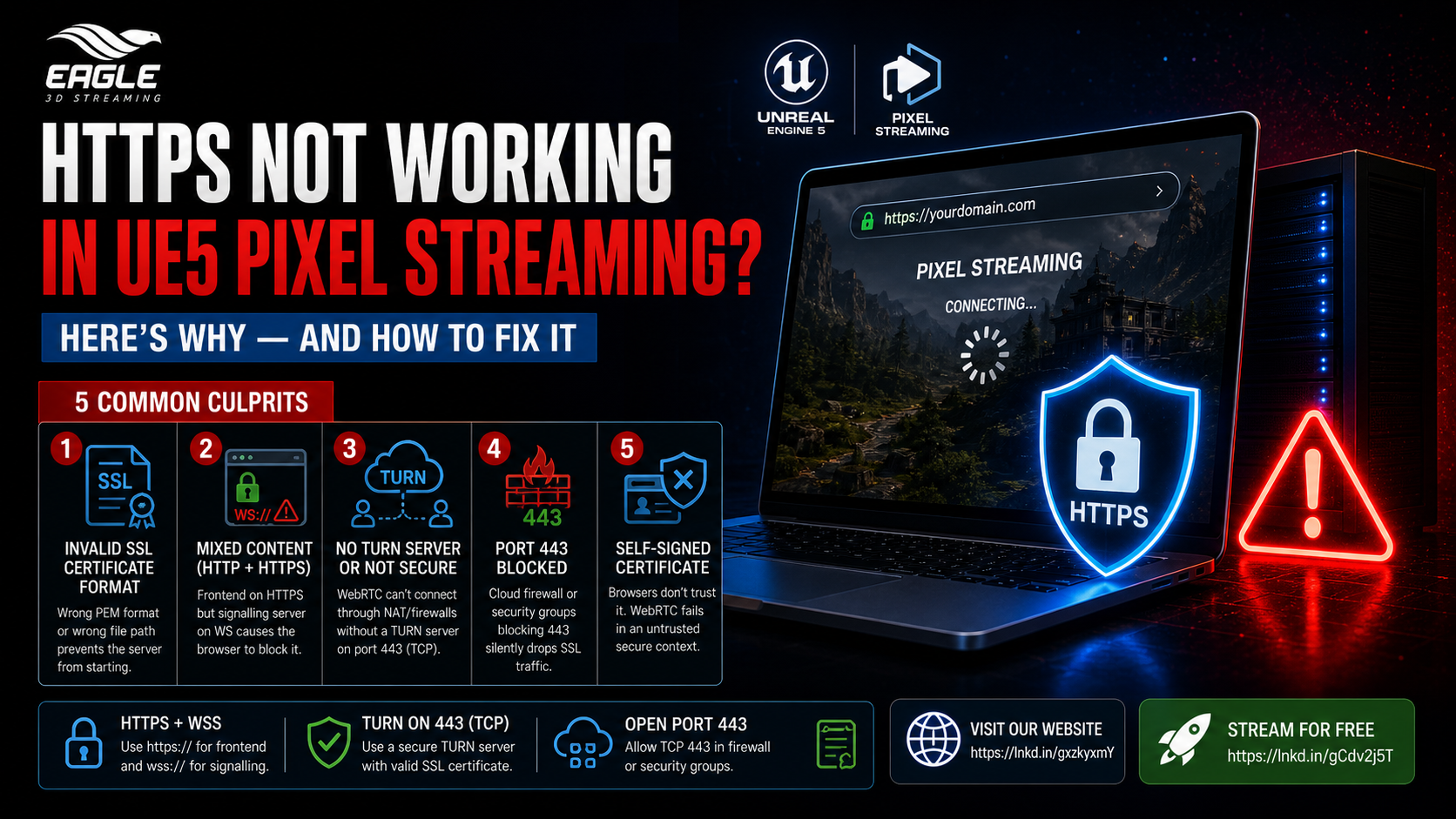
If you've ever deployed an Unreal Engine 5 Pixel Streaming application and watched it silently fail the moment HTTPS enters the picture, you're not alone. For Unreal Engine developers and architectural visualization studios moving projects to the cloud, HTTPS misconfiguration is one of the most common — and most time-consuming — blockers standing between a working local build and a live, browser-accessible stream.
The frustrating part? The stream often appears to load. The page is there. But nothing plays. No clear error. No obvious culprit.
This guide breaks down exactly why HTTPS fails in UE5 Pixel Streaming deployments, what causes each issue at a technical level, and how to fix it correctly — so you can stop guessing and get back to shipping.
Why HTTPS Is Non-Negotiable for Pixel Streaming in Unreal Engine 5
Pixel Streaming works by running your Unreal Engine application on a powerful cloud server and transmitting the rendered output to any browser in real time. The technology that makes this possible — WebRTC — is the same protocol used by video conferencing tools like Google Meet and Zoom.
Here's the critical detail: modern browsers enforce that WebRTC only operates in a secure context. That means HTTPS — not HTTP — is a hard requirement for your Pixel Streaming frontend to function. Without it, browsers will refuse to initialize the WebRTC connection, block camera or stream access, and in many cases fail silently with no user-facing error.
For visualization studios delivering interactive 3D product configurators, real-time architectural walkthroughs, or high-fidelity design reviews to clients through a browser, this isn't a nice-to-have. A broken HTTPS setup means the stream doesn't reach your client — full stop.
Beyond WebRTC, HTTPS also secures the signalling server communication and the WebSocket handshake between your Pixel Streaming infrastructure and the end user — including the control inputs (keyboard, mouse, touch) sent back from the browser to the UE5 application. On corporate networks, mobile data connections, and enterprise environments — all common targets for visualization studio clients — a missing or misconfigured SSL setup will cause the stream to fail even when everything else is correctly deployed.
Getting HTTPS right is foundational. Everything else in your Pixel Streaming stack depends on it.
The 5 Reasons HTTPS Isn't Working in Your UE5 Pixel Streaming Deployment
1. Your SSL Certificate Is in the Wrong Format
What you'll see: The signalling server or Matchmaker fails to start entirely. Node.js throws errors on launch. Your HTTPS endpoint is completely unreachable — not just broken, but absent.
Why it happens: Pixel Streaming's signalling server expects SSL certificates in PEM format. A common mistake is copy-pasting base64-encoded certificate strings directly into config files rather than providing the actual certificate content — or pointing to files that don't exist at the specified path.
The fix:
Verify your certificate file (.pem) begins with:
-----BEGIN CERTIFICATE-----
And your private key file begins with:
-----BEGIN PRIVATE KEY-----
Then confirm the exact file paths are correctly set in your Pixel Streaming server configuration. A single incorrect path or malformed header breaks the entire chain.
2. Mixed Content — Your Frontend Is HTTPS but Your Signalling Server Is Still HTTP
What you'll see: The page loads. The stream should start, but doesn't. Opening the browser console reveals errors about insecure origins, blocked requests, or WebSocket connection failures. The stream hangs indefinitely.
Why it happens: WebRTC requires a fully secure context — meaning every component of the connection must be encrypted. If your frontend is served over https:// but your Pixel Streaming signalling server is still using an unencrypted ws:// WebSocket, the browser classifies this as mixed content and blocks the WebSocket connection before it can establish.
The fix:
Serve your frontend over
https://Serve your Pixel Streaming signalling WebSocket over
wss://Ensure both are under the same trusted domain or a trusted origin
Switching ws:// to wss:// in your signalling server configuration resolves the browser block. Both endpoints must be secured — one without the other will still fail.
3. No TURN Server — Or Your TURN Server Isn't Configured for Secure Transport
What you'll see: Pixel Streaming works perfectly on your local network or in a direct connection test, but fails when accessed over corporate networks, office Wi-Fi with NAT, or mobile data. The WebRTC connection status shows "checking" or immediately drops to "failed."
Why it happens: WebRTC establishes peer connections using ICE candidates — and in open network conditions, this works fine. But corporate firewalls, strict NAT configurations, and mobile carrier networks often block the direct UDP paths WebRTC prefers. Without a TURN server to relay the connection, WebRTC has no fallback route and the stream never connects.
If a TURN server exists but isn't configured to operate on a secure port with SSL, it may also be blocked or rejected in the same restrictive environments.
The fix:
Deploy a TURN server (e.g., Coturn) and run it on port 443 (TCP) with a valid SSL certificate
Add your TURN server configuration inside
peerConnectionOptionsin your Pixel Streaming setup:
"peerConnectionOptions": {
  "iceServers": [
    {
      "urls": ["turn:your-turn-server.com:443?transport=tcp"],
      "username": "your-username",
      "credential": "your-password"
    }
  ]
}
This is not optional for production deployments targeting enterprise or client environments. If your clients are accessing streams from corporate offices, a TURN server is mandatory.
4. Port 443 Is Blocked at the Firewall or Cloud Security Group Level
What you'll see: Your HTTPS URL times out. The stream works perfectly on localhost or on an internal network, but is completely unreachable from outside. Connection attempts hang with no response.
Why it happens: Cloud platforms — AWS, Azure, Google Cloud — require you to explicitly open inbound ports in your instance's security group or firewall rules. Port 443 is required for HTTPS traffic and TURN TLS relay. If it's not open, all SSL traffic is silently dropped at the network boundary — regardless of how correctly your Pixel Streaming stack is configured internally.
The fix:
Open the following at your cloud firewall / security group level:
TCP 443 — mandatory for HTTPS and TURN TLS
If your server is behind NAT (e.g., a private IP behind a load balancer or gateway), configure port forwarding to route external port 443 traffic to your internal signalling server. Alternatively, deploy your Pixel Streaming stack on a cloud VM with a direct public IP to simplify the networking path.
5. Self-Signed Certificates Are Blocking WebRTC in the Browser
What you'll see: The browser shows a security warning. If you bypass the warning, the page loads — but WebRTC still fails. The stream doesn't start despite the HTTPS connection technically being present.
Why it happens: Self-signed certificates are not trusted by default in any major browser. WebRTC's media and stream APIs are gated behind a trusted secure context — meaning a certificate that the browser's certificate authority chain cannot verify is treated as insecure, even if the URL shows https://. The WebRTC connection will not initialize.
The fix:
For production: Always use a CA-issued certificate — Let's Encrypt provides free, trusted certificates and is widely used in Pixel Streaming deployments.
For internal testing only: Manually add the self-signed certificate to your browser or operating system's trusted certificate store. This must be done on every device used for testing and is not a viable option for client-facing deployments.
Quick Reference: HTTPS Issues in UE5 Pixel Streaming at a Glance
Issue | Symptom | Root Cause | Fix |
|---|---|---|---|
Invalid SSL Certificate Format | Signalling server fails to start | Certificate not in PEM format or wrong file path | Use correct PEM format; verify file paths in server config |
Mixed Content (HTTP + HTTPS) | Page loads, stream blocked by browser | Frontend on | Switch signalling to |
Missing or Insecure TURN Server | Works locally, fails on corporate/mobile networks | No TURN relay for NAT/firewall traversal | Run TURN on port 443 with SSL; configure |
Port 443 Blocked | HTTPS URL times out externally | Cloud firewall / security group blocking port 443 | Open TCP 443 in cloud firewall; configure port forwarding or use public IP |
Self-Signed Certificate | Browser warning; WebRTC fails despite HTTPS | Untrusted certificate rejected by browser's secure context policy | Use a CA-issued certificate (e.g., Let's Encrypt) for production |
Frequently Asked Questions
Q: Why does my Pixel Streaming page load but the stream never starts? This is almost always a mixed content issue. If your frontend is served over https:// but your signalling server is still using ws://, the browser blocks the WebSocket connection before the stream can initialize. Switch your signalling server to wss:// and ensure both the frontend and signalling are served securely under the same trusted origin.
Q: My stream works on a local network but fails on corporate networks and mobile data — what's wrong? This points to a missing or incorrectly configured TURN server. WebRTC relies on direct peer connections, which strict NAT and corporate firewalls commonly block. Without a TURN server running on port 443 (TCP) with a valid SSL certificate, WebRTC has no fallback relay route — causing the connection to stall at "checking" or drop to "failed" entirely.
Q: Can I use a self-signed SSL certificate for my Pixel Streaming deployment? Only for internal testing. Browsers reject self-signed certificates by default, and WebRTC's secure APIs will not function in an untrusted context — even if the page technically loads over HTTPS. For any client-facing deployment, use a CA-issued certificate to ensure the browser treats the connection as fully trusted.
Conclusion: Precision Networking, Not Guesswork
HTTPS in Unreal Engine 5 Pixel Streaming isn't complicated in concept — but the margin for error is small, and the failure modes are often silent. A malformed certificate header, a single ws:// where wss:// should be, or a missing rule in a cloud security group can each bring an otherwise production-ready deployment to a complete stop.
For Unreal Engine developers pushing interactive experiences to the browser, and for visualization studios delivering real-time 3D to clients across corporate networks and mobile devices, getting this infrastructure layer right is not optional. It's the foundation everything else runs on.
The issues above are not edge cases — they're the most common reasons Pixel Streaming HTTPS deployments fail in the field. If your stream isn't reaching users, work through this list systematically. Chances are, your answer is here.
Ready to Deploy Your Unreal Experience?
If you're a visualization studio and you're tired of watching great work fall short at the delivery stage, Eagle 3D Streaming is built for you.
🎮 Join the Eagle 3D Streaming Community on Discord
Connect with other studios, get real-time support, share builds, and stay ahead of platform updates. Join the Discord
🛠️ Need Help? Talk to Support
Our technical team understands Unreal Engine workflows. Whether you're troubleshooting a deployment or planning a large-scale rollout, we're here. Contact Support → support@eagle3dstreaming.com
🚀 Upload Your App and Go Live
Ready to stream? Upload your packaged Unreal build, configure your settings, and have your experience live in minutes. Upload Your App